A new panel for the barcode scanner
Scanning a barcode in Hargapedia now opens a panel you can drag up to see more prices, while keeping the product details and action buttons in place.
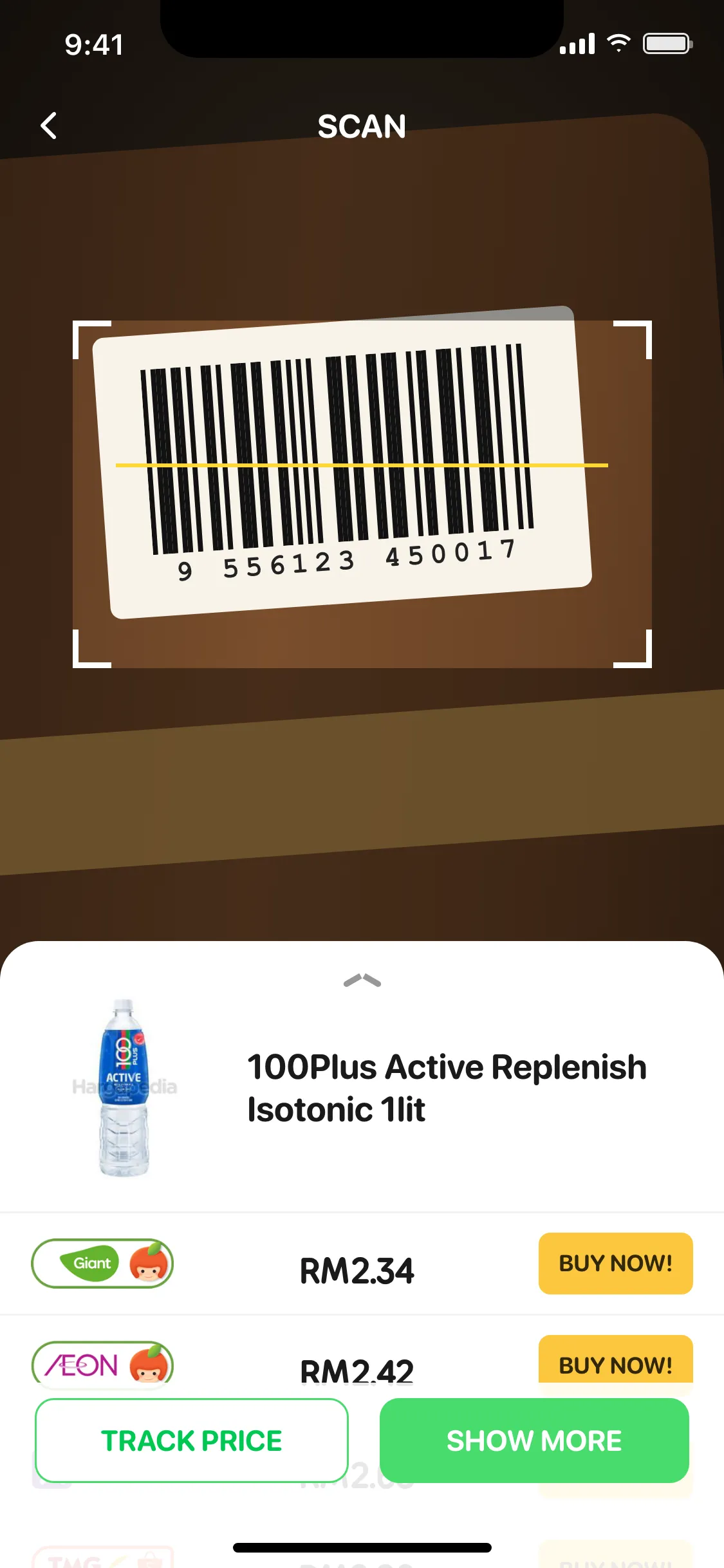
When we added barcode scanning to Hargapedia, we gave it a panel that slides up over the camera whenever it recognises a product. The panel shows what you’ve scanned, where you can buy it and a couple of buttons for what to do next.
This week’s update replaces that panel with one you can pull up to see more prices, without leaving the scanner.
I designed the new panel and we built it using Gorhom’s Bottom Sheet library. We’ve also made a few changes to the scanner itself, including an upgrade to the camera library.
Three heights
The panel opens at 40% of the screen’s height, leaving enough of the camera visible behind it. Drag it upwards and it stops at 70%, then at 89%, where it takes up nearly the whole screen.
Pull it down and the panel closes, returning you to the camera so you can scan another product.
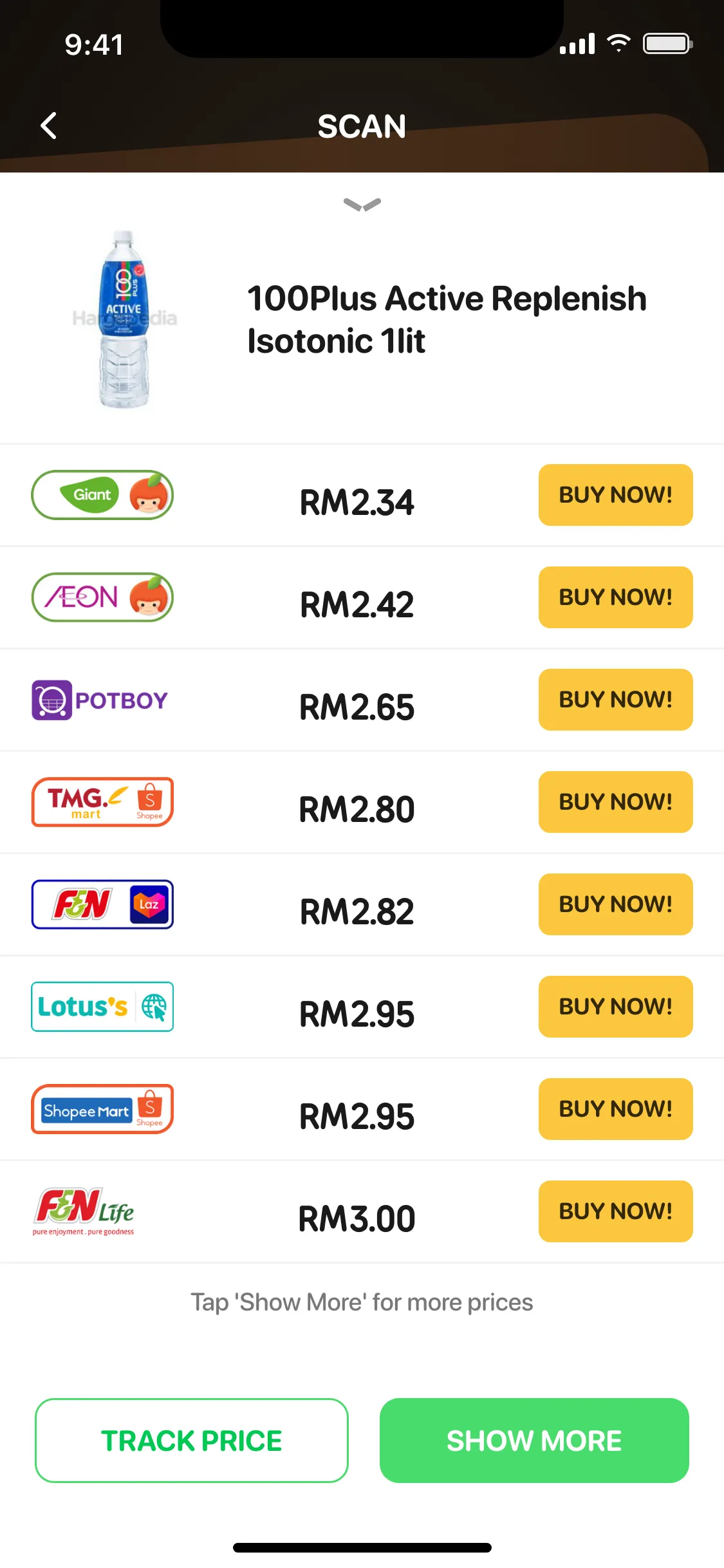
The product photo and name stay at the top of the panel. Underneath is a list of prices from up to ten retailers, with each row showing the retailer’s logo, price and a Buy Now button.
Tapping Buy Now opens the retailer’s page. If the link can’t be opened, the app takes you to the product page instead.
The price list scrolls independently inside the panel, but the two main action buttons stay at the bottom. Track Price adds the product to your Price Tracker, while Show More opens the full product page.
Those buttons remain visible whichever height you’ve dragged the panel to, even when you’re scrolling through the prices. Track Price also disappears if you’ve already added the product to your list.
Making the handle follow your finger
I wanted the handle at the top of the panel to indicate which way it could move.
Instead of a single horizontal bar, I used two short bars that change their angle as the panel moves.
At 40%, they form an arrow pointing upwards. At the middle stop they straighten into a line, and at the highest position they form a downward arrow.
The panel’s top corners change too. They’re rounded when the panel is lower down and gradually become square as it approaches full height.
Both effects follow the dragging movement, rather than waiting until the panel has settled at one of its three stops.
Gorhom’s Bottom Sheet handles the dragging and snap points, so we didn’t have to build the entire gesture interaction ourselves.
We initially put the panel together on a sample screen, with fixed product data and no camera. Once the layout, scrolling and dragging worked there, we moved it into the barcode scanner.
Changes to the scanner
The screen behind the panel has had some work too.
We’ve upgraded the camera library, and barcode detection now uses Google’s ML Kit. The scanner only responds to product barcodes, the kind printed on packaging.
We also changed the scanning frame from a square to a wide rectangle, closer to the shape of the barcodes people will be pointing their cameras at.
While the app looks up a barcode, a spinner appears in the header. If the code doesn’t match anything in our database, a short message tells you that no products were found.
The scan button beside the search bar on the home screen now uses a barcode icon as well.