Voucher 2.0: categories, stores and deals
Hargapedia's Vouchers screen now groups offers by category and store, includes retailer deals alongside promo codes, and lets you copy a code without claiming it first.
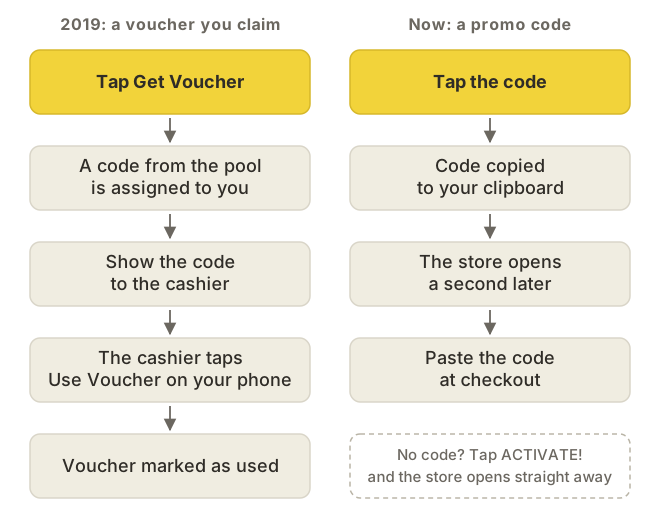
When we first added vouchers to Hargapedia in 2019, they were mostly offers you claimed in the app and showed to the cashier at the retailer’s store. Each voucher had a code, and once you’d claimed it, that code belonged to you.
Things have changed quite a bit since then.
Most of the vouchers we carry now are promo codes for online stores and apps like Shopee, Lazada, Grab, foodpanda and Watsons. They’re usually codes anyone can use, and there’s no reason to claim one before taking it to the store.
The list had also grown considerably. You could narrow it down with a category dropdown or choose a retailer from the sidebar, but finding a particular kind of offer wasn’t especially convenient.
This month’s update reorganises the Vouchers screen around categories and stores, adds retailer deals alongside the promo codes, and simplifies what happens when you tap a voucher.
Finding vouchers by category and store
The first thing we changed was how you browse the vouchers.
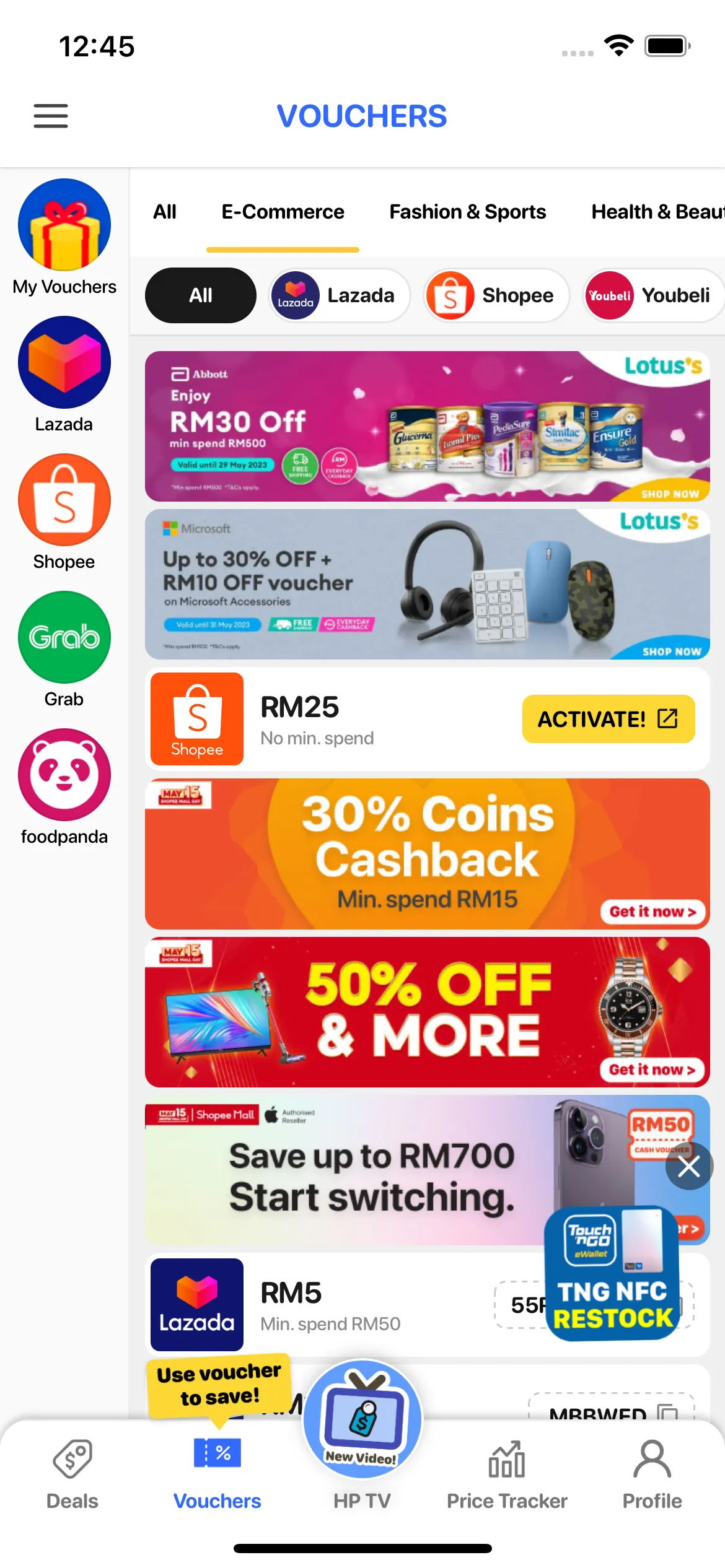
Instead of a category dropdown, there’s now a row of tabs across the top: All, E-Commerce, Fashion & Sports, Health & Beauty, E-Wallet and the other categories.
Each category has its own sub-categories, which are essentially the stores within it. Choose E-Commerce, for example, and another row appears underneath with chips for Lazada, Shopee, Youbeli and the others, each showing the store’s logo.
Selecting a store narrows the list to its vouchers. The All tab skips the store chips and shows everything.
We’ve kept the retailer sidebar on the left for now, including My Vouchers at the top. So you can still browse by retailer as before, but the category tabs give you another way to narrow down the growing list.
Adding deals to the list
Not every promotion has a voucher code.
Sometimes a retailer is running a sale or a bank promotion that has its own campaign page. There’s nothing to copy or redeem, but it’s still an offer worth showing.
We’ve added a new type of entry called a deal for these promotions.
Our team can create a deal with a banner image, a link, an expiry date and the category and store it belongs to. It then appears in the same list as the vouchers.
Deals and vouchers are sorted together by when they were added, so a new Watsons promotion might appear between the latest Lazada and Grab voucher codes.
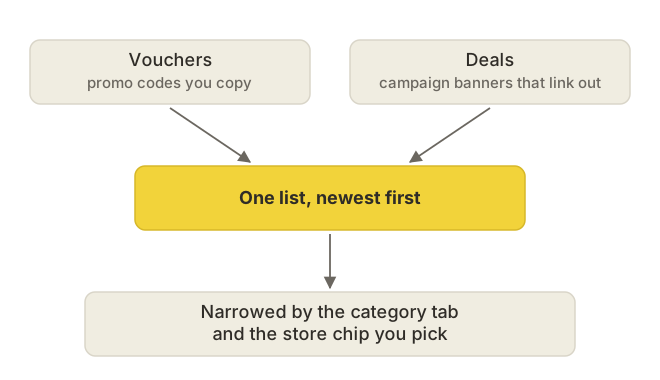
Tapping a deal opens its campaign page in the browser. It also follows the same category and store filters, so selecting Watsons shows both its voucher codes and any deals we’re carrying for it.
Copying a code instead of claiming it
The other change is how you use a voucher.
Our original voucher system was designed around claiming and redeeming. That made sense when a retailer gave us a limited pool of codes, each assigned to someone who claimed one.
But most online promo codes don’t work that way. Everyone can use the same code, and the actual redemption happens on the retailer’s website or app.
So we’ve removed the claiming step for these vouchers.
Each voucher row now displays its code inside a dashed box, with a copy icon beside it. Tap the code and Hargapedia copies it to your clipboard, shows a short “Code copied!” message, then opens the retailer a second later.
By the time you reach the store, the code is ready to paste.
Some offers don’t need a code at all. Those show an ACTIVATE! button instead, which takes you directly to the retailer.
I designed the new layout, and the team built it over January. It’s a fairly different way of using vouchers from the one we started with in 2019, but it fits the kind of offers we’re carrying now.